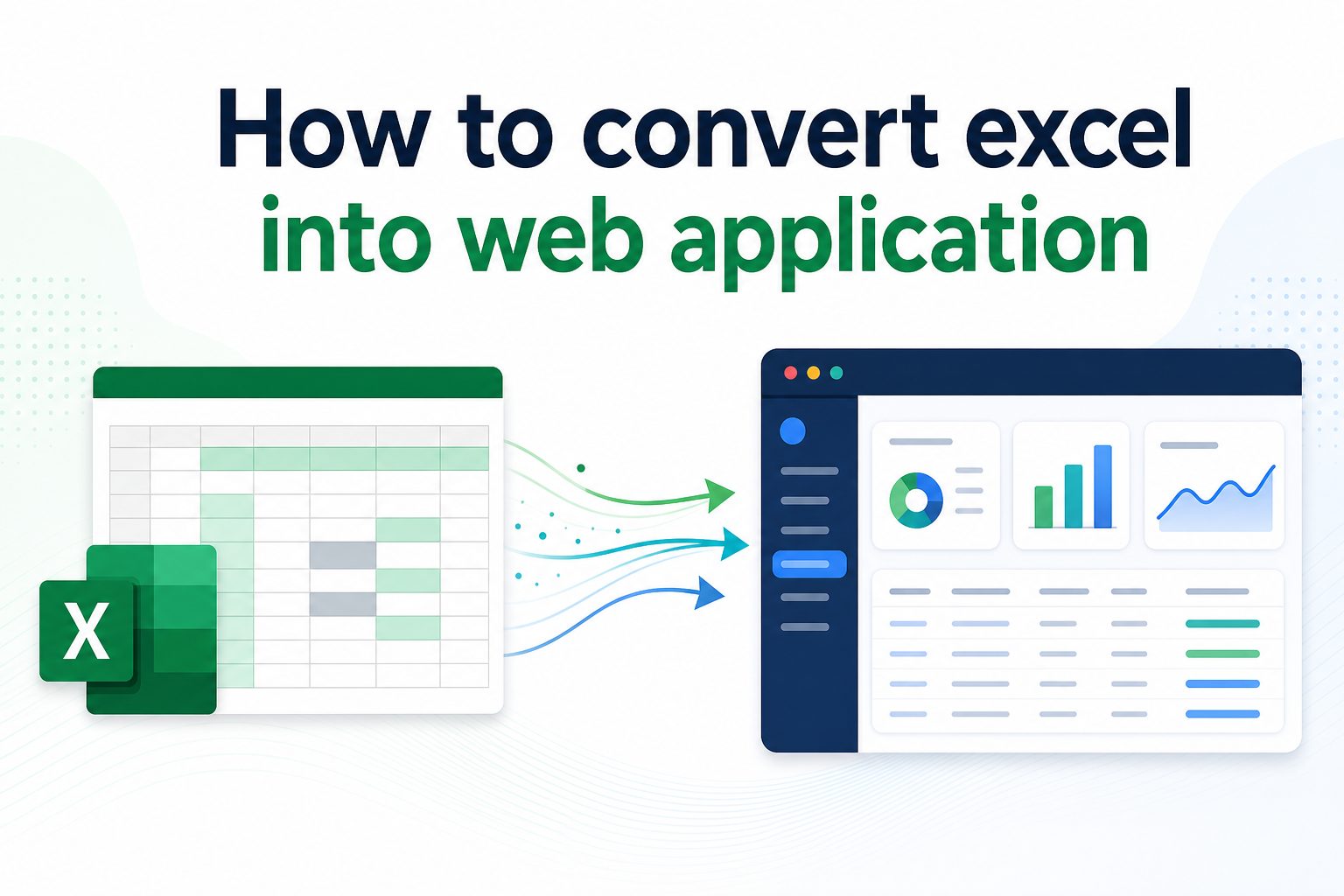
Learning how to convert excel into web application is a practical step for anyone who depends on spreadsheets but needs a more secure, scalable, and user-friendly way to share data. Excel is excellent for calculations, planning, and quick analysis, but it becomes difficult to manage when many people need access, updates, permissions, workflows, or real-time collaboration.
A web application can turn a spreadsheet into an interactive system with forms, dashboards, user roles, automation, reports, and database-backed storage. Instead of emailing files back and forth, users can log in, enter information, review results, and work with the same source of truth from any device.
This guide explains what the process means, why it matters, how to plan it, which methods you can use, and what mistakes to avoid. You will also see practical examples, expert tips, and frequently asked questions to help you choose the right approach for your Excel-based workflow.
Converting an Excel file into a web application means taking the logic, data, formulas, tables, and workflow inside a spreadsheet and rebuilding them as a browser-based tool. The goal is not always to copy every cell exactly. The goal is to preserve the business value while making the experience easier to use and manage.
A simple conversion may involve uploading spreadsheet data into a database and creating online forms for editing it. A more advanced conversion may include dashboards, approval flows, customer portals, notifications, audit logs, and integrations with other business systems.
This matters because spreadsheets often grow beyond their original purpose. A file that started as a quick tracker may become a critical business process. When that happens, version control issues, broken formulas, accidental edits, and limited access controls can create real operational risk.
A web application gives structure to the process. It can validate data before saving it, restrict access by user role, record who changed what, and make reports available instantly. These features are difficult to maintain reliably in a shared spreadsheet.
The best approach depends on the complexity of your workbook. A small calculator, inventory tracker, or quote form may be converted quickly with a no-code tool. A complex financial model, operations platform, or multi-user system may need a custom application built with a database, backend logic, and a designed user interface.
How Does Excel Become A Web App?
1. Review The Workbook Structure
Start by identifying the worksheets, formulas, inputs, outputs, charts, macros, and external data sources inside the Excel file. This review helps separate what users actually need from old sheets, hidden calculations, duplicated fields, and manual workarounds that should not be carried into the application.
2. Define The Core User Workflow
A web application should follow how people complete the task, not how the spreadsheet happens to be organized. Map each user action, such as entering data, submitting a request, approving a record, reviewing a report, or exporting results, so the final product feels natural and efficient.
3. Move Data Into A Database
Spreadsheet rows usually need to become database records. A database makes it easier to search, filter, update, protect, and connect information. It also reduces the risk of duplicated files and supports multiple users working at the same time without overwriting each other’s changes.
4. Rebuild Formulas As Business Logic
Excel formulas often contain important rules, but they may need to be rewritten as application logic. This can include pricing rules, tax calculations, eligibility checks, forecasting formulas, or scoring models. Rebuilding them carefully ensures the application produces the same trusted results.
5. Design Forms And Dashboards
The user interface replaces the spreadsheet grid with focused screens. Forms collect inputs, tables display records, dashboards summarize performance, and filters help users find what they need. A good interface removes unnecessary spreadsheet complexity while keeping important information visible.
6. Add Security And Permissions
A web app can control who can view, edit, approve, delete, or export information. This is one of the biggest advantages over a shared spreadsheet. Permissions should match real responsibilities, especially when the application handles financial, customer, employee, or operational data.
7. Test Results Against Excel
Before launching, compare the application’s outputs with the original workbook. Use real sample cases, edge cases, and historical records. This testing confirms that calculations, reports, validations, and workflows behave correctly before users depend on the new system.
Key Benefits Of An Excel Web App
1. It gives users access from any browser without sending spreadsheet attachments or managing local file versions.
2. It supports multiple users at the same time while keeping data in one controlled source.
3. It improves data accuracy through required fields, validation rules, and controlled input forms.
4. It protects sensitive information with logins, permissions, and activity tracking.
5. It makes reporting faster because dashboards and summaries can update automatically from live data.
Best Ways To Convert Excel Online
- No-Code Platforms: No-code tools are useful when the spreadsheet is simple and the team needs a fast result. They can turn tables into forms, dashboards, and basic workflows without custom programming.
- Low-Code Builders: Low-code platforms work well when you need more control than a no-code tool provides but still want faster delivery than fully custom development.
- Custom Web Development: A custom build is best for complex rules, integrations, high traffic, unusual workflows, or long-term product plans that require full control over architecture.
- Database-First Migration: This method starts by modeling the spreadsheet data as proper database tables. It is a strong choice when data quality, reporting, and scalability are top priorities.
- Dashboard Conversion: Some Excel files mainly exist for charts and reporting. In that case, converting the workbook into a web dashboard may solve the main problem without rebuilding every input screen.
- Portal-Based Application: A portal is useful when customers, vendors, employees, or partners need controlled access to specific records, forms, documents, or reports.
Common Excel Web App Mistakes
1. Copying Every Spreadsheet Feature
Many teams try to recreate the entire workbook exactly as it is, including old tabs and rarely used formulas. This makes the web app harder to use. Focus on the real workflow, required data, and valuable outputs instead.
2. Ignoring Data Cleanup
Excel files often contain inconsistent names, blank fields, duplicate rows, and manual notes. Moving messy data directly into a web application creates long-term problems. Clean and standardize the data before migration whenever possible.
3. Skipping User Permission Planning
A spreadsheet may be shared broadly, but a web application needs clearer access rules. Decide who can create, edit, approve, view, export, and delete records before development starts, especially for sensitive business processes.
4. Underestimating Formula Complexity
Some formulas look simple but depend on hidden cells, named ranges, lookup tables, or manual assumptions. Document the logic carefully and test converted calculations against trusted examples from the original Excel workbook.
5. Building Without User Feedback
The people who use the spreadsheet every day understand the shortcuts, exceptions, and pain points. Involving them early helps prevent a technically correct application that fails because it does not match real working habits.
6. Forgetting Maintenance Needs
A web application needs updates, backups, monitoring, and occasional improvements. Plan who will maintain the system, handle user requests, review errors, and update business rules after the first version goes live.
Converting Excel into a web application is about turning a useful but limited spreadsheet into a more reliable digital tool. The process usually includes reviewing the workbook, defining workflows, moving data into a database, rebuilding formulas, designing interfaces, and testing carefully.
The right method depends on the complexity of the spreadsheet and the importance of the workflow. Simple trackers may work well with no-code tools, while complex business systems usually need a custom approach.
A successful conversion keeps the best parts of the spreadsheet while solving its biggest problems. When planned well, the result is easier to access, safer to manage, and better suited for real business growth.
FAQs About Converting Excel Into A Web App
Can Any Excel File Become A Web Application?
Most Excel files can be converted, but the best method depends on complexity. Simple lists, calculators, and trackers are easier to convert. Workbooks with macros, advanced formulas, hidden dependencies, and external data sources need more planning and testing.
Do I Need Coding To Convert Excel Into A Web App?
Not always. No-code and low-code tools can handle many basic use cases. However, custom coding is usually better when you need complex permissions, advanced calculations, integrations, performance control, or a unique user experience.
What Happens To Excel Formulas During Conversion?
Important formulas are usually rewritten as application logic or database calculations. The converted logic should be tested against the original spreadsheet to make sure results match. Some formulas may also be simplified if the workflow is redesigned.
Is A Web App More Secure Than Excel?
A properly built web app can be more secure because it supports user authentication, role-based permissions, audit logs, backups, and controlled access. Security still depends on good implementation, strong hosting, and careful management.
How Long Does The Conversion Process Take?
A simple Excel web app may take days or a few weeks. A larger application with multiple workflows, dashboards, integrations, and user roles may take several weeks or months. The biggest factor is usually business logic complexity.
Should I Keep Excel After Building The Web App?
Many teams keep Excel for exports, analysis, or backup reporting, but the web application should become the main system of record. Keeping both as active editing tools can create duplicate data and confusion.